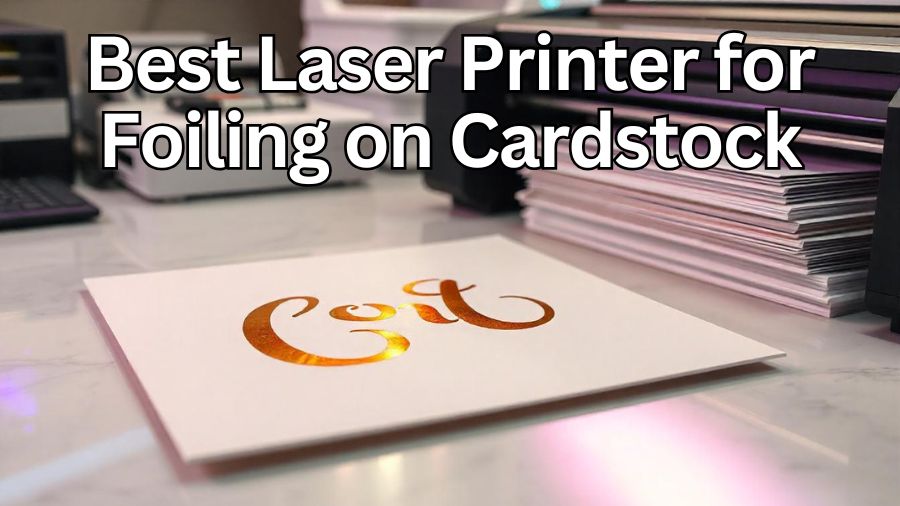
Imagine creating greeting cards, wedding invitations, or business stationery that shimmer with gold, silver, or holographic accents—all from the comfort of your home. With the right tools, this is entirely possible. The secret lies in using a laser printer for foiling on cardstock.
Laser printers are unique because they use heat to bond toner to paper. This heat-reactive toner becomes sticky when reheated, allowing metallic foils to adhere precisely where the toner is applied. This process, known as toner foiling, enables you to add a touch of elegance to your projects without the need for expensive equipment.
In this guide, we’ll explore the best laser printers for foiling on cardstock available in 2025. Whether you’re a hobbyist looking to enhance your DIY projects or a small business aiming to produce professional-quality materials, selecting the right printer is crucial. We’ll delve into key features to consider, such as print quality, compatibility with cardstock, and ease of use, to help you make an informed decision.
By the end of this article, you’ll be equipped with the knowledge to choose a laser printer that meets your foiling needs, bringing your creative visions to life with stunning metallic finishes.
Understanding Foil Printing
Foil printing adds a shiny, metallic touch to paper. It’s like giving your designs a golden or silver glow. To do this at home, you need a laser printer, special foil, and a heat source like a laminator.
How It Works
Laser printers use a powder called toner. This toner sticks to paper when heated. When you print your design, the toner is applied to the paper. Then, you place a piece of foil over the printed design. The foil sticks only to the toner areas when heat is applied. This process is called toner foiling.
Why Use a Laser Printer
Laser printers are ideal for this because they use heat to bond the toner to the paper. This heat-reactive toner allows the foil to adhere properly. Inkjet printers, which use liquid ink, don’t work for this method.
Materials Needed
- Laser Printer: Prints your design.
- Toner-Reactive Foil: The shiny foil that sticks to the toner.
- Laminator or Heat Press: Applies heat to transfer the foil.
- Cardstock: Thick paper that holds the design.
Steps to Foil
- Design: Create your design on a computer.
- Print: Use the laser printer to print the design onto cardstock.
- Prepare Foil: Cut a piece of foil slightly larger than the design.
- Apply Foil: Place the foil, shiny side up, over the printed design.
- Heat: Run the cardstock and foil through a laminator or heat press.
- Reveal: Once cooled, peel off the foil to see your shiny design.
This method is popular for making greeting cards, invitations, and other paper crafts. It’s a cost-effective way to add a professional touch to your projects.
Key Features to Consider in a Laser Printer for Foiling
When choosing a laser printer for foiling on cardstock, it’s essential to focus on specific features that ensure optimal results. Here’s what to look for:
1. Toner Quality and Density
Opt for a monochrome (black-and-white) laser printer. Monochrome printers use toner that, when heated, becomes adhesive, allowing foil to bond effectively. Ensure the printer delivers high-density black toner for sharp, clear prints. This is crucial for achieving crisp, professional-looking foiled designs.
2. Paper Handling Capabilities
Choose a printer capable of handling thick cardstock, typically between 120–300 gsm. Look for models with adjustable paper trays or manual feed slots to accommodate various paper weights. A straight-through paper path is beneficial to prevent paper jams when printing on heavy cardstock.
3. Print Resolution
A higher print resolution, measured in dots per inch (DPI), results in finer details and smoother edges. For foiling, a resolution of at least 1200 x 1200 DPI is recommended. This ensures that intricate designs are printed with precision, enhancing the quality of the foiled finish.
4. Speed and Efficiency
Consider the printer’s pages per minute (PPM) rate. Faster printing speeds are advantageous, especially for bulk printing tasks. However, ensure that speed does not compromise print quality. Some printers offer settings to adjust print speed and quality to suit your needs.
5. Cost of Consumables
Evaluate the cost of toner cartridges and their yield. Printers with high-yield toner cartridges can reduce the cost per page, making them more economical for frequent printing. Additionally, consider the availability and cost of replacement parts to maintain long-term affordability.
6. Build Quality and Durability
A sturdy build ensures the printer can withstand regular use without frequent breakdowns. Look for models with a high monthly duty cycle, indicating they are designed for consistent, high-volume printing. Durability is particularly important for small businesses or frequent crafters.
7. User-Friendliness
Ease of use is crucial, especially for those new to foiling. Choose a printer with an intuitive interface and straightforward setup process. Features like wireless connectivity and compatibility with various devices can enhance convenience. Some printers also offer mobile printing options, allowing you to print directly from your smartphone or tablet.
By focusing on these key features, you can select a laser printer that meets your foiling needs, ensuring high-quality, professional results on cardstock.
Top 5 Laser Printers for Foiling on Cardstock in 2025
If you’re aiming to add a touch of elegance to your cardstock projects through foiling, selecting the right laser printer is crucial. Laser printers are ideal for this purpose as they utilize heat-reactive toner that bonds with foil, creating a shiny, metallic finish. Below are five top-rated laser printers suitable for foiling on cardstock in 2025, each offering unique features to cater to various needs and budgets.
1. HP LaserJet M209d
🏷️Check Price In Amazon
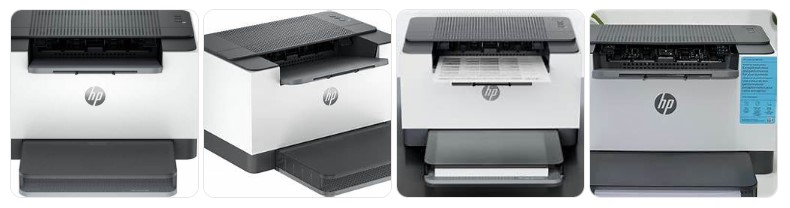
The HP LaserJet M209d is a compact monochrome laser printer designed for small offices and home use. It offers fast, reliable black-and-white printing with automatic duplexing, making it a suitable choice for users who require efficient document printing without the need for color capabilities.
Key Features:
- Print Speed: Up to 30 pages per minute (ppm) for single-sided documents and up to 19 images per minute (ipm) for double-sided printing.
- Print Resolution: 600 x 600 dpi, ensuring sharp and clear text output.
- Connectivity: USB 2.0 connection; wireless connectivity is not supported.
- Paper Handling: 150-sheet input tray and 100-sheet output tray; supports various media types including cardstock, labels, and envelopes.
- Monthly Duty Cycle: Designed for a monthly duty cycle of up to 20,000 pages, suitable for moderate printing needs.
- Energy Efficiency: ENERGY STAR certified, indicating energy-efficient operation.
User Experience:
Users have reported positive experiences with the HP LaserJet M209d, highlighting its fast printing speed and compact design. The printer’s automatic duplexing feature is appreciated for saving paper and reducing printing costs. However, some users have noted that the lack of wireless connectivity may be a limitation for those seeking remote printing capabilities.
Ideal Use Cases:
The HP LaserJet M209d is ideal for users who primarily need to print black-and-white documents and do not require color printing or wireless connectivity. Its compact size makes it suitable for small office spaces or home offices where desk space is limited.
2. Canon imageCLASS LBP6030w
🏷️Check Price In Amazon
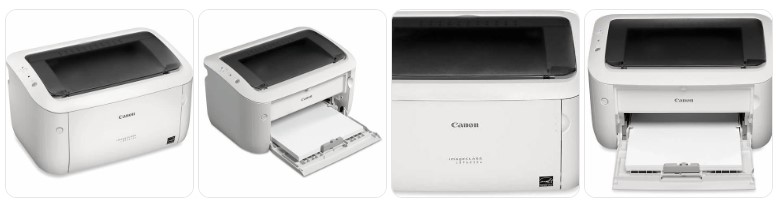
The Canon imageCLASS LBP6030w is a compact, wireless monochrome laser printer designed for home offices and small businesses. It offers fast printing speeds, high-quality output, and convenient wireless connectivity, making it an excellent choice for users seeking efficiency and reliability in their printing tasks.
Key Features:
- Print Speed: Up to 19 pages per minute (ppm), ensuring quick document processing.
- Print Resolution: 600 x 600 dpi, with an equivalent resolution of 2400 x 600 dpi, delivering sharp and clear text.
- Wireless Connectivity: Supports Wi-Fi 802.11b/g/n, allowing for wireless printing from various devices.
- Mobile Printing: Compatible with Canon Mobile Printing, enabling printing from smartphones and tablets.
- Paper Handling: 150-sheet input tray and 100-sheet output tray, accommodating various paper sizes and types.
- Compact Design: Space-saving dimensions of 14.3″ x 9.8″ x 7.8″ (W x D x H), suitable for small workspaces.
- Energy Efficiency: ENERGY STAR® certified, ensuring low energy consumption during operation.
Why Choose the Canon imageCLASS LBP6030w?
This printer is ideal for users who require fast, high-quality monochrome printing with the convenience of wireless connectivity. Its compact size makes it suitable for limited spaces, while its efficient performance meets the needs of home offices and small businesses. The wireless and mobile printing capabilities add flexibility, allowing users to print from various devices without the need for physical connections.
Availability and Pricing:
- Amazon: Available for purchase, with prices varying based on sellers and shipping options.
- B&H Photo Video: Priced at $87.00, offering free expedited shipping.
- Walmart: Listed at $134.99, with availability for pickup or delivery.
- Star Tech Bangladesh: Available for 17,200৳, with delivery options within Bangladesh.
The Canon imageCLASS LBP6030w stands out as a reliable and efficient monochrome laser printer, offering fast printing speeds, high-quality output, and convenient wireless connectivity. Its compact design and energy-efficient operation make it a suitable choice for home offices and small businesses seeking a dependable printing solution.
3. Brother HL-L2405W
🏷️Check Price In Amazon
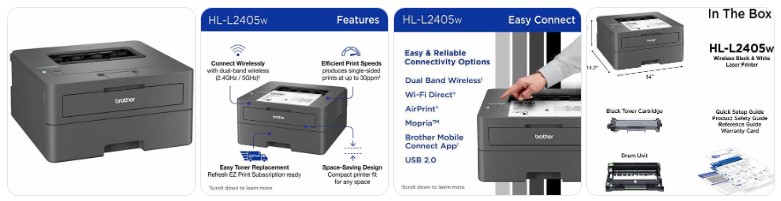
The Brother HL-L2405W is a compact monochrome laser printer designed for home offices and small businesses. It offers fast, reliable black-and-white printing with automatic duplexing, making it a suitable choice for users who require efficient document printing without the need for color capabilities.
Key Features:
- Print Speed: Up to 30 pages per minute (ppm) for single-sided documents and up to 19 images per minute (ipm) for double-sided printing.
- Print Resolution: 600 x 600 dpi, ensuring sharp and clear text output.
- Connectivity: USB 2.0 connection; wireless connectivity is not supported.
- Paper Handling: 150-sheet input tray and 100-sheet output tray; supports various media types including cardstock, labels, and envelopes.
- Compact Design: Space-saving dimensions of 14.3″ x 9.8″ x 7.8″ (W x D x H), suitable for small workspaces.
- Energy Efficiency: ENERGY STAR certified, indicating energy-efficient operation.
User Experience:
Users have reported positive experiences with the Brother HL-L2405W, highlighting its fast printing speed and compact design. The printer’s automatic duplexing feature is appreciated for saving paper and reducing printing costs. However, some users have noted that the lack of wireless connectivity may be a limitation for those seeking remote printing capabilities.
Ideal Use Cases:
The Brother HL-L2405W is ideal for users who primarily need to print black-and-white documents and do not require color printing or wireless connectivity. Its compact size makes it suitable for home offices or small offices where desk space is limited.
4. Brother DCP-L2640DW
🏷️Check Price In Amazon
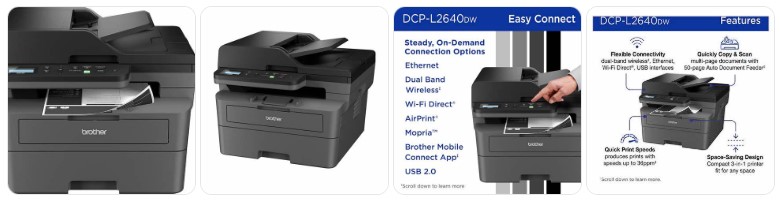
The Brother DCP-L2640DW is a versatile monochrome laser printer designed for small offices and home environments. Combining printing, scanning, and copying functionalities, it offers a compact solution without compromising on performance.
Key Features:
- Print Speed: Up to 36 pages per minute, ensuring quick document processing.
- Print Resolution: 1200 x 1200 dpi, delivering sharp and clear text.
- Connectivity: Supports dual-band Wi-Fi (2.4GHz/5GHz), Ethernet, and USB 2.0, providing flexible connectivity options.
- Automatic Duplex Printing: Enables double-sided printing to save paper and reduce costs.
- Automatic Document Feeder (ADF): 50-sheet capacity for efficient scanning and copying of multi-page documents.
- Mobile Printing: Compatible with Brother Mobile Connect, Apple AirPrint, and Google Cloud Print for convenient mobile printing.
- Toner Options: Compatible with TN-830 (up to 1,200 pages) and TN-880 (up to 3,000 pages) high-yield toner cartridges.
User Experience:
Users appreciate the DCP-L2640DW for its reliable performance and ease of use. The setup process is straightforward, and the printer’s compact design fits well in limited spaces. The wireless connectivity options allow for flexible placement and convenient printing from various devices.
Ideal Use Cases:
This printer is well-suited for small businesses, home offices, or individuals who require high-quality monochrome printing, scanning, and copying capabilities. Its fast print speed and efficient document handling make it a valuable asset for environments with moderate to high-volume printing needs.
Availability:
The Brother DCP-L2640DW is available through various retailers, including Amazon and Best Buy. Prices may vary based on location and promotions.
The Brother DCP-L2640DW offers a reliable and efficient solution for monochrome printing, scanning, and copying needs. Its combination of fast performance, versatile connectivity, and compact design makes it a valuable addition to any small office or home setup.
5. HP LaserJet Pro M281fdw
🏷️Check Price In Amazon
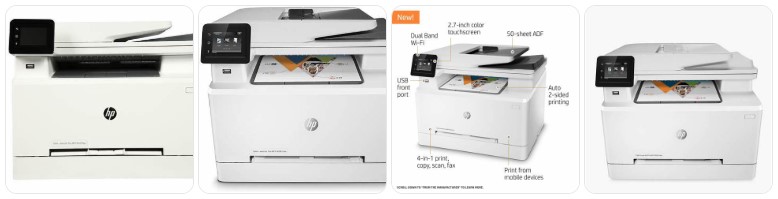
The HP LaserJet Pro M281fdw is a versatile all-in-one color laser printer designed for small offices and home environments. It combines printing, scanning, copying, and faxing capabilities in a compact form factor, making it an ideal choice for users seeking efficiency and quality in their printing tasks.
Key Features:
- Print Speed: Up to 22 pages per minute (ppm) for both black-and-white and color documents, ensuring quick turnaround times for your printing needs.
- Print Resolution: 600 x 600 dpi, delivering sharp and clear text and graphics suitable for professional documents.
- Connectivity Options: Offers dual-band Wi-Fi, Ethernet, and USB 2.0 connections, providing flexible options to connect to your network or devices.
- Mobile Printing: Supports mobile printing solutions such as Apple AirPrint, Google Cloud Print, and the HP Smart app, allowing you to print from smartphones and tablets.
- Automatic Document Feeder (ADF): Equipped with a 50-sheet ADF for efficient scanning and copying of multi-page documents.
- Duplex Printing: Automatic two-sided printing helps reduce paper usage and costs.
- User Interface: Features a 2.7-inch color touchscreen for easy navigation and operation.
Why It’s Suitable for Foiling on Cardstock:
The HP LaserJet Pro M281fdw’s high-resolution printing and reliable toner application make it suitable for foiling on cardstock. Its automatic duplex printing feature ensures consistent results, and the availability of compatible toner cartridges supports quality output for various projects.
Availability and Pricing:
The HP LaserJet Pro M281fdw is available through various retailers, including Amazon and Best Buy. Prices may vary based on location and promotions.
The HP LaserJet Pro M281fdw offers a combination of speed, quality, and versatility, making it a valuable addition to any small office or home workspace. Its multifunction capabilities and user-friendly features cater to a range of printing needs, including professional-quality foiling on cardstock.
❓ Frequently Asked Questions (FAQ)
1. What is foiling on cardstock?
Foiling is a process where shiny metallic foil is added to cardstock using heat and toner. It makes designs look elegant and shiny.
2. Can I use an inkjet printer for foiling?
No, inkjet printers don’t work for foiling. You need a laser printer because it uses heat and toner, which helps the foil stick.
3. What type of paper is best for foiling?
Smooth, uncoated cardstock is best for foiling. It allows the foil to stick evenly. Avoid textured or glossy paper.
4. Do I need special foil for foiling?
Yes, you need toner-reactive foil. This type of foil bonds with the toner on your printed design when heat is applied.
5. Can I print color designs and foil them?
Yes, you can print color designs with a color laser printer and foil them. However, monochrome prints (black-and-white) are the most common for foiling.
6. How do I transfer the foil onto the cardstock?
You transfer the foil using a laminator or heat press. Place the foil over the printed design and run it through the machine.
7. How do I prevent the foil from smudging?
After foiling, let the cardstock cool down completely before handling it. This prevents smudging and ensures a clean finish.
8. Can I use a regular printer for foiling on cardstock?
No, you must use a laser printer. Regular inkjet printers don’t have the toner needed for foiling.
9. Is foiling difficult?
Foiling is easy once you get the hang of it. Just follow the right steps, and you’ll be creating beautiful foiled designs in no time!
10. Can I use foiling for large projects?
Yes, foiling is great for larger projects like invitations, business cards, or posters. Just make sure your printer can handle larger paper sizes.